
The editing window
Note: The editing window contents are different for each app. The following is a schematic representation.
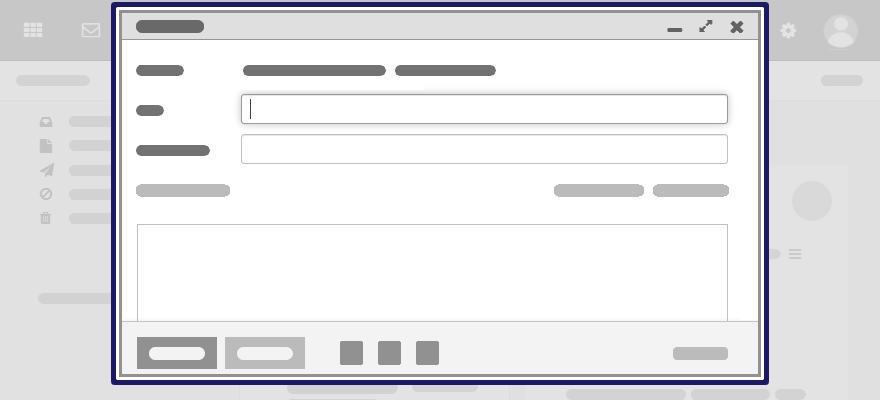
The following actions open the editing window:
-
creating or editing objects
-
editing the personal contact data
-
creating or editing simple text files
Content
-
The title bar includes the following elements:
-
window title
-
icons for setting the window position:
-
icon . Displays the editing window as icon at the bottom.
-
icon . Displays the editing window in its maximum size. If clicking the icon again, the original size is restored. You can also double-click on the title bar again to toggle the window sizes.
-
-
-
Depending on the app or function, various buttons, icons or input fields are available.


Properties
-
You can move an editing window.
-
You can activate further functions while an editing window is open.
-
You can open multiple editing windows.
-
Minimized editing windows are displayed as icons at the bottom. In order to restore an editing window, click the icon.